Troubleshooter
This is the first year we’ve used a mobile-friendly website rather than an app to help you collect the bears, and there will be some teething problems, so please read the FAQs below and then let us know if you’ve had any problems we haven’t mentioned.
Bear with us if you’re struggling! We are working on more specific instructions and will be adding more Troubleshooting methods as we come up against them.
Please keep trying. The first few days may be more difficult as we have a lot of people registering and logging on. Our servers are upgrading to higher load-bearers during periods of heavy use, but they may still struggle whenever demand has decreased and then increases suddenly.
If you log out, it should ask you again if you want to allow it to track your location. Otherwise, you can go into the browser settings and enable location settings.
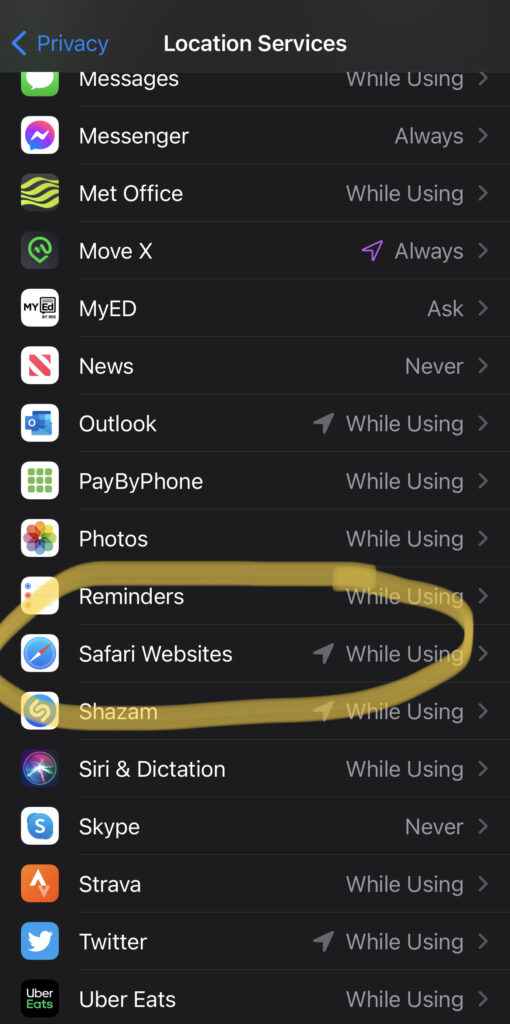
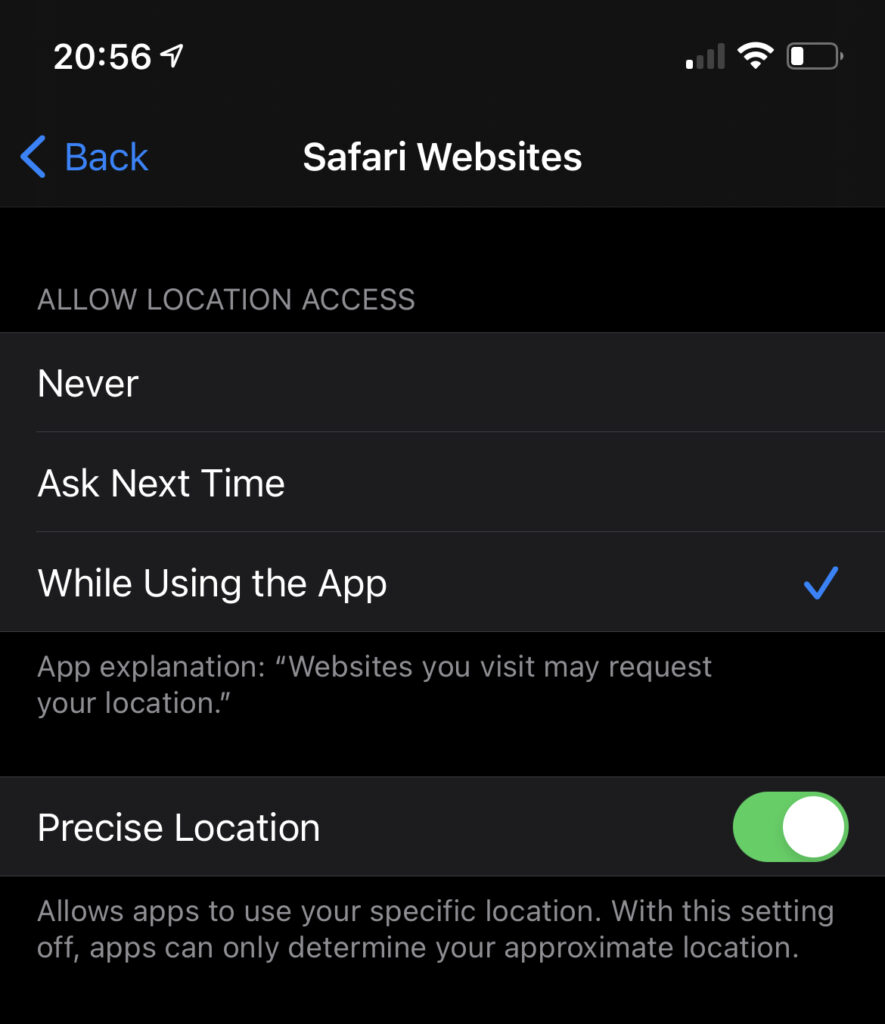
iPhone: Go to Settings > Privacy, then select Location Services. Select Safari (or other browser) from the list of apps on the location page, then turn Precise Location on
Android:
Method 1:
- Tap Settings.
- Tap Location.
- Move the slider to On.
- Tap Mode.
- Select the Mode you prefer: High accuracy: Delivers the most accurate location information by using GPS, Wi-Fi networks, Bluetooth, and cellular networks to determine your location.
Method 2:
- Swipe down from the top of the screen.
- Touch and hold location
.
- If you don’t find location
or Settings
. Then drag location
- If you don’t find location
- Tap Advanced
Google Location Accuracy.
- Turn Improve Location Accuracy on or off.
We’re sorry you’re struggling to catch the bears, we’ve been there and it’s frustrating. The best thing to do is walk around a bit and notice when the bear starts to jump up and down on the map, and then you’ll be able to catch it.
The old chestnut, turning your phone off and on again, can also help.
Please be aware of a few things that might be causing problems:
- The progressive web app works with a combination of Google maps and phone GPS. This means that your physical location will not always correspond to where your phone thinks it is – and this also depends on your mobile phone provider’s coverage and a great deal of other things besides.
- Make sure you have plenty of battery: There are other things which contribute to your phone’s location not being accurate, for example, if you are running out of battery and your phone has switched to Low Power settings, it will be preventing Location Services from running as accurately. This is also the case if the mobile signal is patchy.
- On iPhone, check whether your precise location in the browser you are using is switched on (see instructions in “The website can’t find my location”)
- When catching bears in urban areas with lots of tall buildings, keep in mind that your GPS may drift or jump.
- Ensure you have a strong internet connection, either via a cellular or Wi-Fi. However, please be aware that strong Wi-Fi signal or cellular data (i.e. having full bars) isn’t always sufficient to guarantee a stable connection. Both may slow down during periods of heavy usage.
- If possible, try switching between Wi-Fi and cellular data, to see if your GPS accuracy improves.
The map is set to stay on your location so that it can alert you if there are any bears skulking in the vicinity, so it is meant to do that. But if you want to browse the area, our advice is to either zoom out, or switch off your location temporarily.
Go to settings (see previous FAQ “The website can’t find my location”) and switch Location Services off – then you’ll be able to wander wherever you want without it reminding you where you are every 2 seconds.
Did somebody tell you that catching these bears was going to be easy pawsy?
There are a couple of bears in locations (Graves Park in particular) where the mobile signal is not amazing so your location marker may be whizzing all over the place. It is possible to catch them, but you might have to run around a bit!